

Webinar Start Guide
Attending the webinar is easy and can be done through your internet browser on any device.
(Google Chrome or Firefox is recommended).
Preparation
Before attending the webinar, please perform a quick system check to ensure an optimal experience.
Webinar Controls
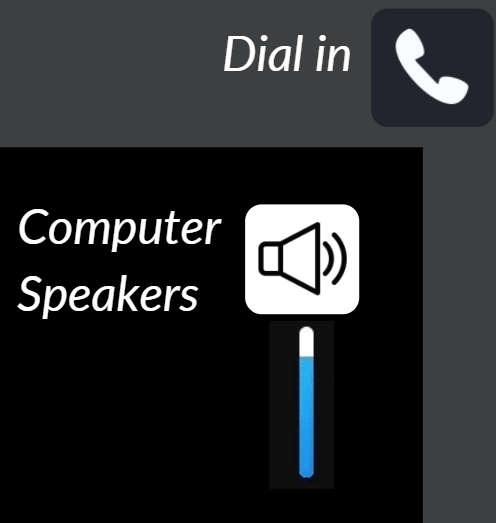
Connect Audio:


Turn up your computer speakers or dial in for audio.
Dial-In information can be found by selecting the telephone icon on the top right of the webinar's screen.
Use the Chat:
The chatroom is for attendees to interact with each other and our staff.
Get assistance
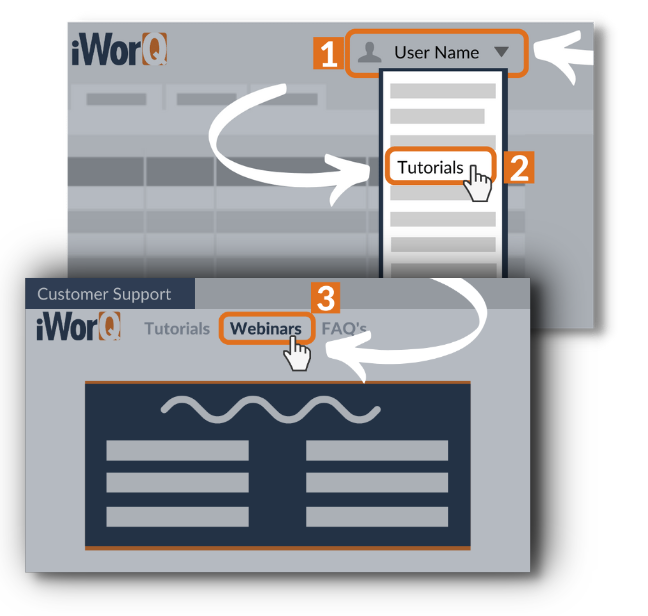
If you experience any technical issues, our experts are here to help.
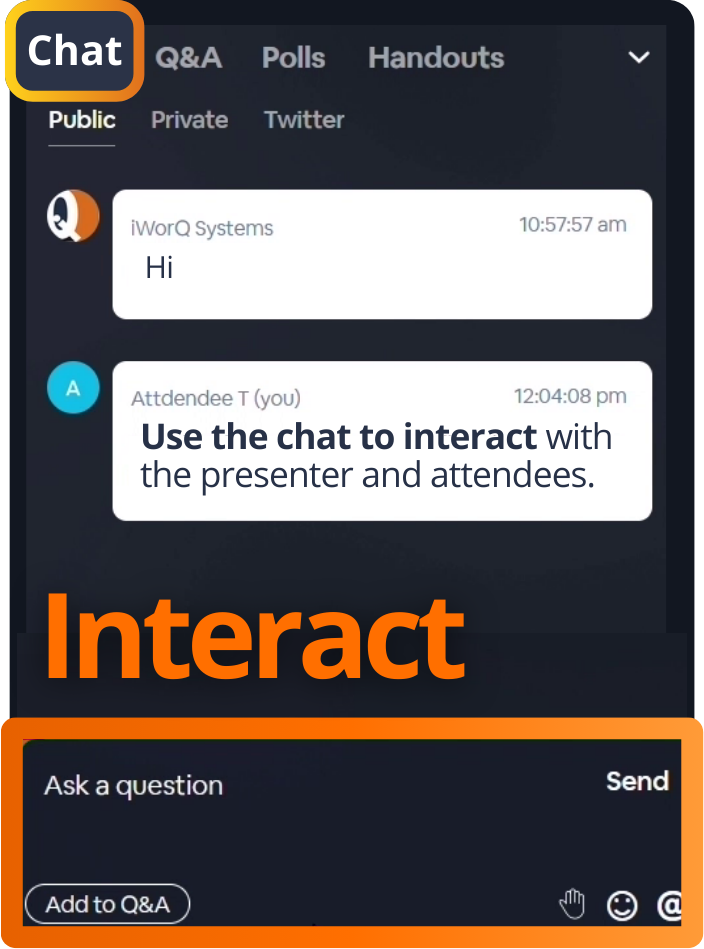
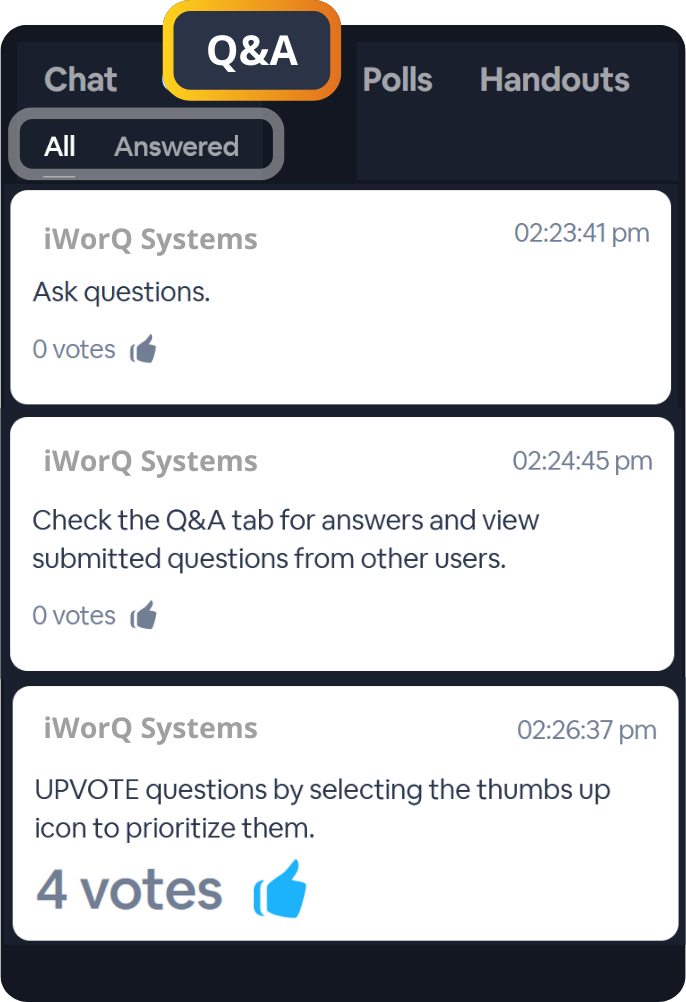
Ask Questions
Add questions to the Q&A list. We will be answering your questions at the end of the presentation.
Upvote Questions
You can upvote other attendee's questions to show further interest in learning the answer to their question.

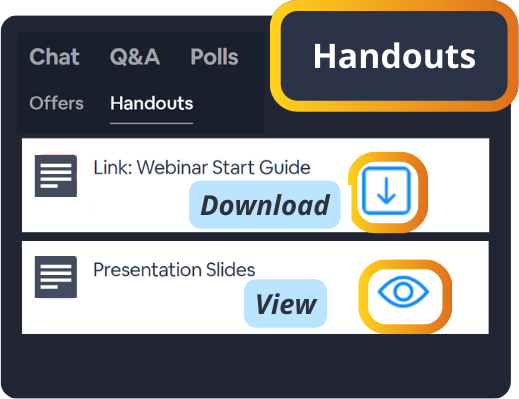
Download Handouts
On the handouts tab you can view and download documents from the webinar.
View Full Screen


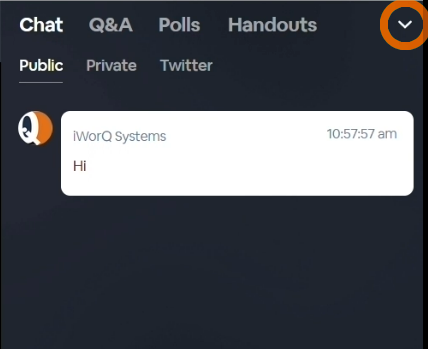
Minimize or Expand the Chat
Open Webinar in Google Chrome
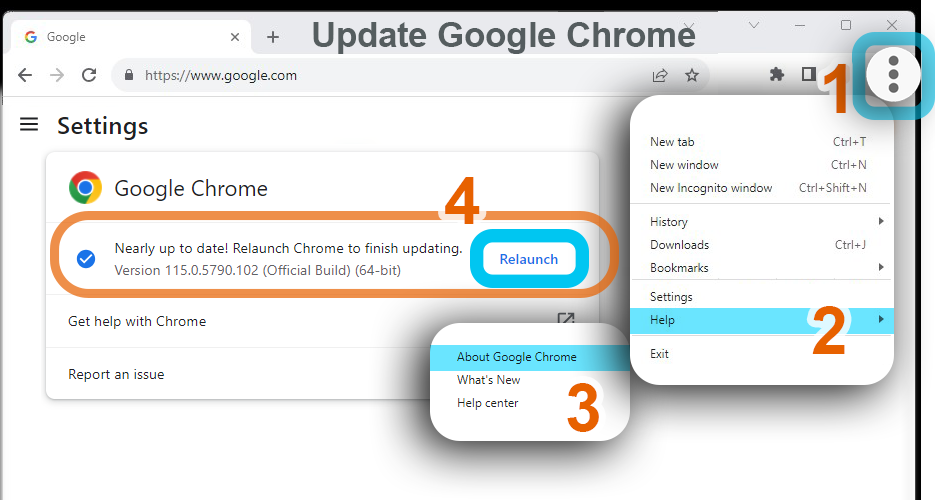
If you experience any issues, make sure you are viewing the webinar from a Google Chrome Browser, and make sure it's up to date.
You can check that by selecting the ellipses in the top right corner of the browser, hovering over "Help", and selecting "About Google Chrome."
From there it will indicate if it's up to date or not. If It's not up to date, you will see a button to update it and relaunch your open windows.
The Summit has ended.
October, 6-9, 2025
As a perk to enrolling, you will get early access to watch the unedited recordings on Friday, October 10th for any class you enrolled in.
You will be able to access recordings using the same personalized link(s) you received to join the live webinar.
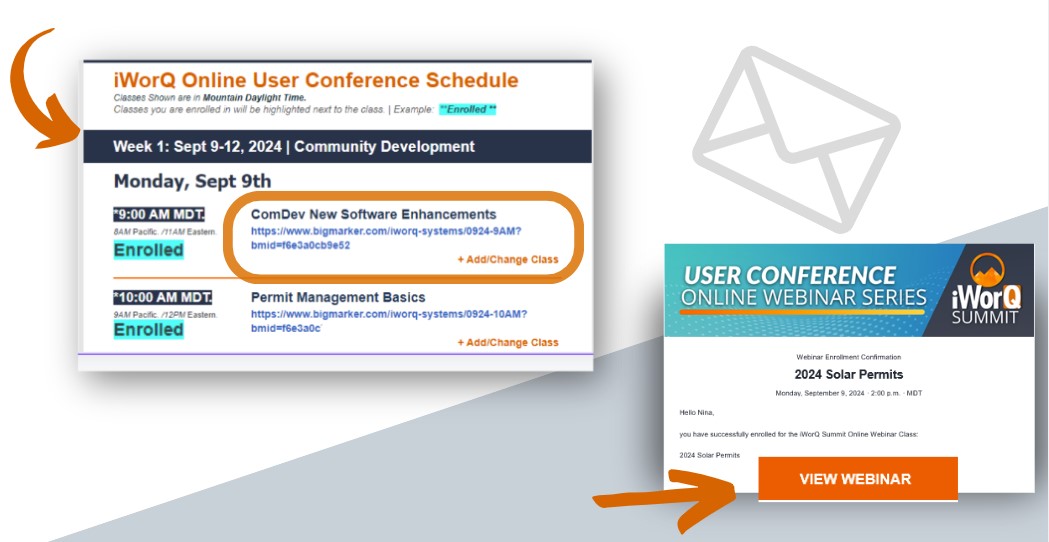


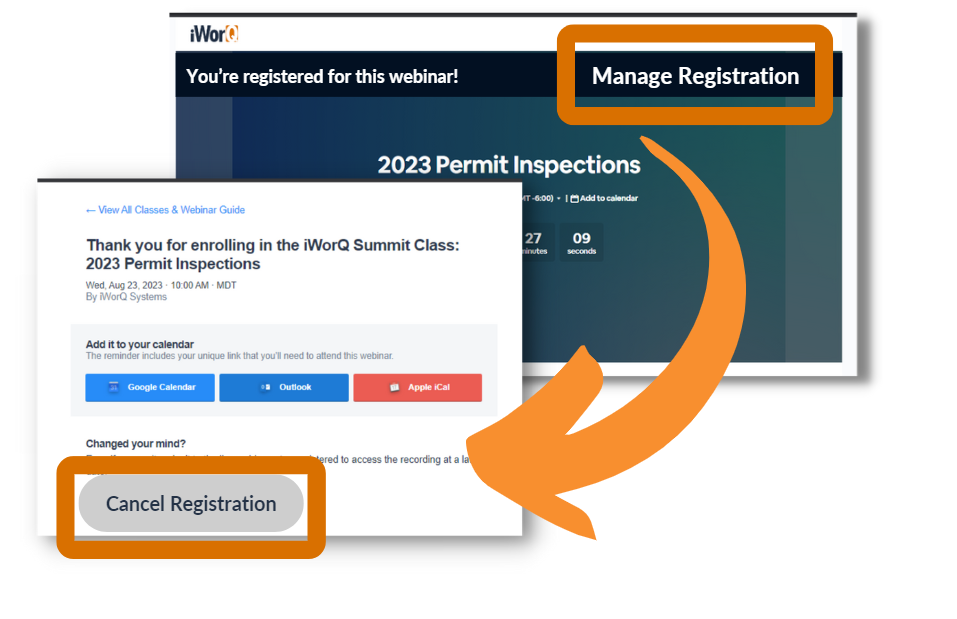
Need to un-enroll in a class?
Un-Enroll
click on your access link for the class.
On the class webinar screen,
select “ Manage Registration” up at the top.
From there, you will see some options to add the class to your calendar.
Scroll down to the bottom of the page and select “Cancel Registration.”.